
I've had this article sitting in drafts for almost a year; it became completely deprioritized by other things at the guild, and for many reasons, I never got to finish it. Now, here it is, something nobody asked for, in a somewhat questionable format, and longer than anyone will ever probably read.
I don't often see this question asked; most people mention VPNs, amongst many other things, when suggesting privacy. But do people really know what they use it for? Is it really necessary, and does it address their concerns?
Unfortunately, I feel they take it as a one-shot to kill them all.
The trigger
I was lurking on X, as I do daily when procrastinating looking for relevant news or something hot, and I stumbled upon this tweet:
It's called HTTPS https://t.co/pHYOnQrU2P
— @levelsio (@levelsio) May 16, 2025
At first, I didn't think too much of it, although I wanted to object and add a few things to help people think about it for themselves. However, in order to reply, we would first need to understand what the word 'protect' represents in this context. Privacy? Security?
Have you ever reflected upon that question before?
Vox populi
Before we answer the questions above, let's see what the most heated opinions (I could find so far) had to say about this.
Comments weren't well elaborated, and in most cases, mixing terminology or partially explaining their takes, but here's my summary:
- Who cares about my data?
- Not all applications always follow security and privacy measures when using the network. For example, mobile apps don't want you to leave their app, so they instead offer the opening of links inside web-views. Embedded browsers are not the only scenario, of course.
- MITM can happen anyway; an untrusted network means "untrusted" for something.
- Fake software updates can plant malware.
- "Insecure WiFi" doesn't exist. TLS is everywhere!
- DNS spoofing can happen anyway! They also leak privacy; you need to ensure DNSSEC is in place.
- Using a VPN shifts your blind trust from one provider to another. Technically, it's the same.
- SSL stripping is still a thing.
- It's a very common practice to replace certificates to perform tasks such as monitoring, and to provide an alternative accepted certificate by your browser (or to make it take it). This can happen at work or could be the result of using an antivirus.
- HTTPS is not the same as TLS. Use 1.3v. And TLS could be downgraded.
- If the router is compromised, HTTPS won't protect you.
- Why the fuck would you use a public WiFi when you can use Mobile data?
I feel this selection overall represents a good chunk of the public opinion. Some are correct, some are ignorant, some are outdated, some are mistaken, some are partially accurate, and some others are incomplete.
Let's start by providing more context and information, so you can then decide for yourself. Shall we?
Attack surface & risks
Airport WiFis
Let's start by discussing the most common scenario: airports!
Airports offer free Wi-Fi primarily to enhance passenger experience and facilitate operations. Not without doing some or most of the following:
- Displaying ads: The captive portal ("the website" that pops up demanding you accept the Terms of Service before enabling your WiFi access) often displays targeted advertising.
- Data collection and analytics: Email addresses, phone numbers, and device information are collected for further use, such as targeted campaigns (sometimes even within a captive portal) or improving their services (optimistically).
Open networks
Additionally, by trying to connect to an open, known, popular network, you also take the following risks:
- Rogue hotspot (evil twin): The network you are connecting to may not be the network you actually want to connect to. Attackers set up rogue networks mimicking legitimate ones. Devices auto-reconnect to the stronger, attacker-controlled SSID (what you might know as the "name of the WiFi").
- Captive-portal credential harvesting: Login pages ask for email, phone, or OAuth tokens that can be sold or used in phishing.
- Lateral scanning+: Open client-to-client traffic allows anyone to probe SMB, AirDrop, SSH, and other exposed services, which could also result in vulnerability exploitation.
- Malicious updates: Attackers might intercept your communications. Man-in-the-middle allows the possibility to tamper with insecure update channels – I've spent a considerable amount of time maintaining a framework that focused specifically on this type of attack.
- Long-term device fingerprinting: Someone could potentially identify you. MAC randomization has already been "defeated" by different techniques, like browser and protocol fingerprinting, and stable radio attributes.
And there are a few more which are less frequent or a bit unrealistic given today's default security measures:
- DNS spoofing / rogue DHCP: Attackers may respond to DNS or DHCP requests faster than the actual devices expected to provide those services, thereby pushing a malicious resolver or gateway.
- QR-code phishing in the terminal: There could be a fake menu or boarding QR codes redirected to malicious sites once you join Wi-Fi. Although I think it's easier to fall into a rogue network, given that they can be more stealthy and targeted.
- SSL-strip / downgrade: Intercepting HTTP -> HTTPS redirect, forcing it to go back to HTTP. This is not practical today since most browsers, at a minimum, will display an annoying warning if they allow the website to go through. Some specific scenarios are an exception, but mostly depend on what you're using to navigate that connection.
- Session hijack/cookie theft: Sniffed session cookies might allow attackers to replay your authenticated state, which can be a consequence of an insecure communication channel.
There are more, but as you've seen with the last one, some of them are only circumstantial or only a possibility as a consequence of other scenarios.
Unrealistic web browser attacks – SSL
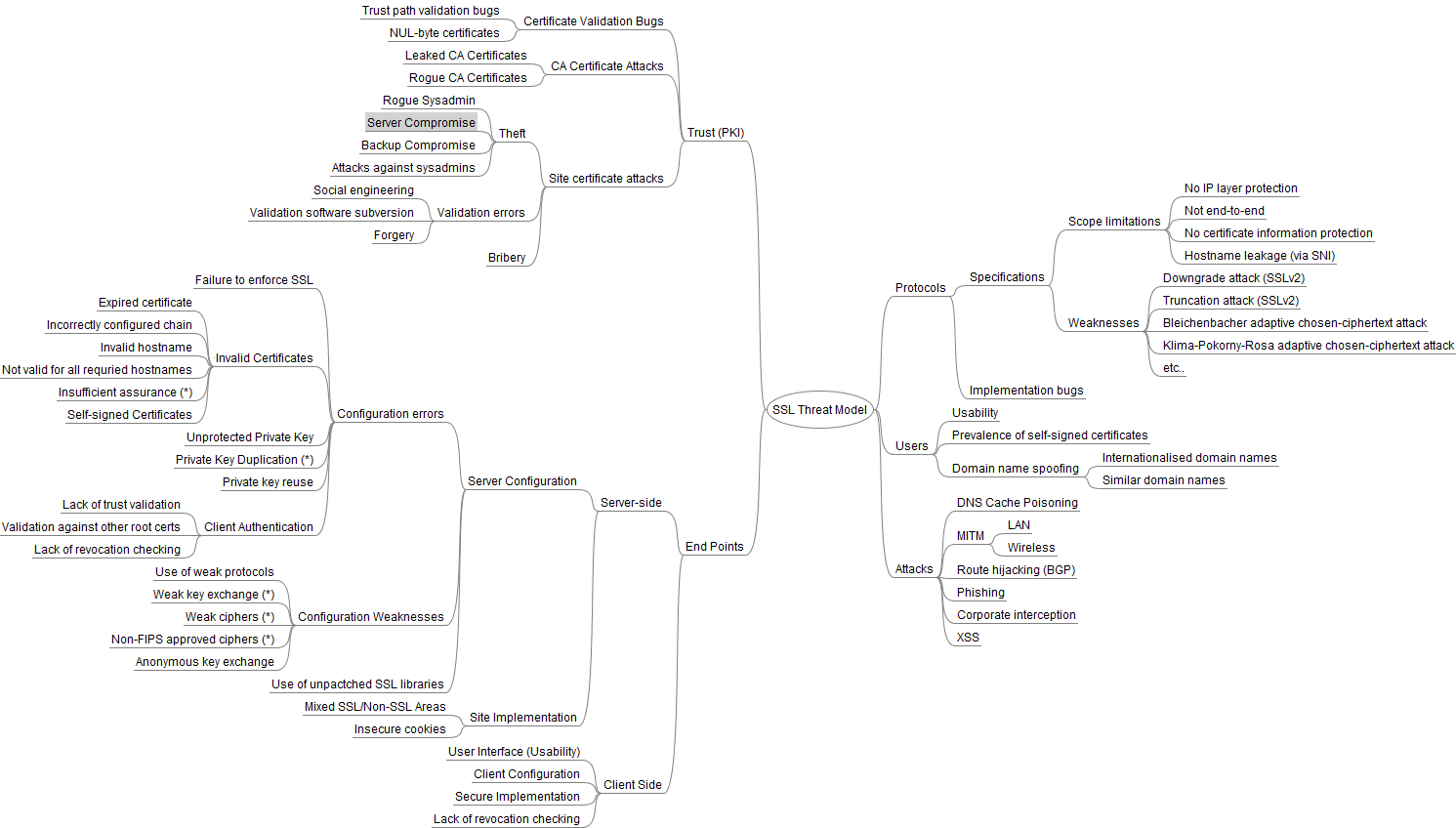
Why do I say some of those attacks are unrealistic today? If we set aside privacy concerns and focus solely on security, the window for these attacks to succeed unnoticed is quite short.
For an attacker to read or tamper with your encrypted traffic, they must serve a certificate that your browser decides to trust – or force your communication to go entirely unencrypted. That requires one of only a few things to go wrong:
- Registrar / DNS / BGP hijack – they momentarily control your DNS records, complete ACME validation, and obtain a legit cert. CAs nowadays implement several validations to reduce this attack surface.
- CA or intermediate compromise – a breach lets attackers mint valid certs for any domain until browsers revoke that CA (this has happened a lot).
- User-installed rogue cert – common in captive-portal scams that demand you "install a security certificate" before getting online.
- Stolen private key for an existing cert – like the Flame operation that signed malware with a Microsoft-trusted certificate.
- SSL-stripping / protocol-downgrade – self-explanatory, but browsers won't even allow you to load the website. I only see this possible in situations where you're on a very insecure intranet, with self-signed or org-owned CA certificates, and users are used to clicking through warnings. I'm also thinking weak packet inspection processes, where your data gets decrypted, inspected, and then encrypted again.
Anything short of these will trip a certificate error that a halfway-alert user will spot, unless you are running an outdated or deliberately weakened browser.
Unsecure browsers
Well, there are certainly browsers that are safer than others. You might say: "but matta, I always use my super secure default browser!!"
So, let me ask you a question: do you know what exactly goes under the hood when you interact with something like a captive portal?
Tinfoil-hat mode on.
How captive-portal detection works (in one breath)
- OS fires a plain-HTTP request to a hard-coded URL after DHCP/RA success:
- Windows often tries to access a Microsoft URL like
http://www.msftconnecttest.com/connecttest.txt. - macOS and iOS often access
http://captive.apple.com/hotspot-detect.html. - Android devices hit URLs such as
http://clients3.google.com/generate_204.
- Windows often tries to access a Microsoft URL like
- Expected response is tiny text or HTTP 200/204 codes.
- If it receives anything else (redirect, 30x, 200 with a different body, TLS error), the OS assumes it is "behind a captive portal" and launches its mini-browser.
Ok, what the fuck is a mini-browser?
Well, the answer depends on who's asking, but it's a minimalistic browser that gets triggered by the OS to open captive portals primarily.
I asked ChatGPT to create a table for this specific answer.
| Platform / OS | Helper window (mini-browser) | Detection URL(s) | Expected reply |
|---|---|---|---|
| Windows 10/11 (desktop) | Edge WebView2 dialog labelled “Captive Portal” (browser_broker.exe) |
http://www.msftconnecttest.com/connecttest.txt (legacy: msftncsi.com/ncsi.txt) |
Plain text: “Microsoft Connect Test” (Microsoft for Developers, Airheads Community) |
| Windows Phone 8.1 / 10 Mobile | System IE/Edge WebView | same MSFT URLs above | same text string (Microsoft Learn) |
| macOS / iOS / iPadOS | Captive Network Assistant.app (/System/Library/CoreServices/…) |
http://captive.apple.com/hotspot-detect.html (older: /library/test/success.html) |
HTML page with <title>Success</title> and body “Success” (Apple Support Community, Apple Developer) |
| Android 6 → 15 | CaptivePortalLogin activity (AOSP) | http://connectivitycheck.gstatic.com/generate_204 ╱ clients3.google.com/generate_204 |
HTTP 204 No Content (Harman Pro Help Center, Palo Alto Networks Knowledge Base) |
| ChromeOS | Chrome captive-portal tab | same Google generate_204 endpoints |
HTTP 204 (Reddit) |
| Linux (GNOME / NetworkManager) | gnome-shell-portal-helper (WebKitGTK) |
http://nmcheck.gnome.org/check_network_status.txt |
“NetworkManager is online” (GNOME Blogs) |
| KDE Plasma | plasma-portal WebKit view |
http://networkcheck.kde.org/ |
“OK” (plain text) (openSUSE Forums) |
| Firefox (Desktop & Android, all OSs) | Internal tab “You must log in to this network” | http://detectportal.firefox.com/canonical.html |
Small HTML file with “success.txt” hash (Mozilla Support) |
But these are not the only browsers that you sometimes use inadvertently.
Now, for a moment, let's assume that was not your case (with the mini-browser), you are always prompted to use your favorite browser. But when you are on your phone, using several apps, where do you open the links that you sometimes click?
Mini-browser's cousin – embed browsers
App developers don't want you to leave their app when they share a link for you to check. That's why Apps typically rely on an in-app browser — also called an embedded browser or simply a WebView — to open links without kicking users out to the full system browser. The exact implementation differs by platform:
- Android uses Android System WebView or Chrome Custom Tabs.
- iOS/macOS exposes SFSafariViewController (and lower-level WKWebView) as their in-app browser wrapper.
- Cross-platform discussions, docs, and tooling usually refer to the component generically as a WebView / in-app browser.
Sources: Felix Krause Keepnet Labs Snopes
This poses a lot of significant risks; I'm listing a few:
- In-app browsers can do whatever they want, for example, inject JS to add some extra 'functionality'.
- No address bar —you cannot see where the hell you are! Users cannot verify the origin, which facilitates phishing.
- Shared cookies/session tokens —custom tabs share Chrome’s cookie jar by design, letting the host app piggy-back on your logged-in state. The same applied to Apple’s SFSafariViewController, but stopped syncing after iOS 11, if I'm not mistaken.
Enough about browsers, let's get back to the topic.
Need or no need for a VPN
The VPN industry makes $70 billion per year, it's worth almost a trillion dollars
— @levelsio (@levelsio) May 17, 2025
So this tweet will get a lot of pushback
If you don't believe me: ask any security researcher with credentials and they'll probably mostly agree
The big VPN companies have used lots of FUD to… https://t.co/vSXATPs0jb
First, let's start by defining a VPN in simple terms. Most use it daily without wanting to understand the fundamental technical aspects.
What is a VPN?
It's crazy the marketing VPN companies have pushed so that now everyone thinks going on a WiFi without a VPN is dangerous
— @levelsio (@levelsio) May 16, 2025
Generally it's not dangerous, you're protected by HTTPS on every website, SSH on your terminal
But VPN companies want to keep normies scared so they pay… https://t.co/wJACDv8B1A
A VPN has literally two main characteristics:
- trusted tunnel (encrypted) – it wraps all your traffic so anyone in the middle (airport Wi-Fi, ISP, coffee-shop router) only sees ciphertext and the VPN server’s IP
- borrowed IP address – because packets exit from the VPN gateway, you appear to sit in that gateway’s city/country
That's basically it (plus some protocol flavors).
What can you use it for?
- compliance/requirements – reach a corporate intranet, meet PCI-DSS or HIPAA "encrypt in transit" clauses
- privacy – keep local eyes (ISP, campus LAN, hotel Wi-Fi) from logging what you do
- security – block casual sniffing/tampering on hostile networks and add kill-switch insurance
How does it add privacy?
If well configured, it:
- Masks public IP: websites see the VPN node, not the one tied to your identity or location – How VPNs really work
- Hides DNS queries: good services tunnel DNS or use encrypted resolvers like 1.1.1.1 – Cloudflare's blog
- Breaks geo-fences: the exit IP bypasses streaming or censorship blocks – Cloudflare's blog
- Dilutes tracking: thousands share the same exit, so a single IP ≠ a single user – TechRadar
- But cookies, browser-fingerprints, and log-ins still link sessions – a VPN shifts visibility, it doesn’t erase identity – VPN forum at Reddit
How does it add security?
If well configured, it:
- Encrypts every packet end-to-end (AES-GCM / ChaCha20-Poly1305) – stops passive snoops on open Wi-Fi
- Integrity-checks traffic – injected or altered packets fail authentication and are dropped
- Kill switch: if the tunnel drops, traffic is blocked to avoid IP/DNS leaks NordVPN
- Modern protocols are lean & fast – WireGuard typically outperforms OpenVPN, so security doesn’t have to mean slow (you can check your own sources)
- Audited “no-logs” providers reduce trust risk – independent reports (e.g., PwC on ExpressVPN) verify claims
Is it infallible? – Well, no.
Here's a list of several factors to consider in your threat model:
- Provider can log or get raided - If police serve a warrant or the company folds under subpoena, your traffic metadata can leak
- DNS & IP leaks still happen – Mis-configured clients, IPv6 routes, or split-tunnel mistakes send look-ups to your ISP in clear
- TunnelVision & rogue-route attacks can force traffic outside the tunnel if the local gateway manipulates DHCP or routes.
- Browser fingerprinting survives – device fonts, canvas/WebGL, and TLS quirks still identify you even with a new IP
- Malicious/free VPN apps ship malware – many "no-cost" Android VPNs bundle adware or spyware
- Streaming & firewalls detect and block exits – Netflix, Amazon, or censored regions blacklist popular VPN ranges, nullifying geohop goals
- Kill-switch failure reveals your real IP – if the tunnel drops and no kill switch is active, traffic falls back to raw Internet
- Protocol metadata – WireGuard stores client IPs on the server for handshakes and allows address "roaming" a privacy trade-off
- Government blocking/legality – some countries throttle, detect, or criminalize unapproved VPNs (see what's happening with the UK now)
- Endpoint still vulnerable – malware on your laptop records keystrokes before encryption; a VPN cannot fix a compromised device.
What is a DNS leak, and why should I care?
From all these, there are a few that you can corroborate yourself without going through much trouble. One of them is understanding if there's a DNS leak, for example.
I won't be able to explain it better than dnsleaktest.com, which also has a tool you can test for yourself. Thee website only has three sections:
- What is a DNS leak? — which also includes information on transparent proxies
- How to fix a DNS leak — with detailed info for every browser/OS
- WebRTC Leak Test — their tool that helps you find potential leaks on your current setup
Why should you recommend it?
Because HTTPS encrypts what you're saying, but not who you're talking to, when, how often, or how much data you're exchanging. If privacy is a concern, then knowing this is key. For non-high profile targets, I’d worry more about this than security overall imho.
HTTPS ≠ VPN
So the key difference between HTTPS and a VPN (and I cannot believe I have to explain this) is:
- HTTPS secures individual connections between your browser (or app) and a specific server. It encrypts the content of those connections and verifies you're talking to who you think you're talking to. It operates at the application layer — meaning each app, each connection, each request is independently wrapped.
- A VPN wraps all your device's traffic at the network layer — every app, every protocol, every DNS query — into a single encrypted tunnel to a gateway you control or trust. From there, it exits to the internet on your behalf
They overlap on encryption, but diverge on almost everything else:
| HTTPS | VPN | |
|---|---|---|
| What's encrypted | Content of a single connection | All traffic from the device |
| Who sees the destination | Your ISP, the local network, anyone on path (via SNI) | Only the VPN provider |
| Who sees your IP | Every server you connect to | Only the VPN provider |
| DNS queries | Typically unprotected unless you configure DoH/DoT | Tunneled through the VPN (if properly configured) |
| Metadata (timing, volume, patterns) | Fully visible to the local network | Hidden from the local network, visible to the VPN provider |
I think the critical gap most people miss is metadata.
Even with HTTPS everywhere:
- The TLS handshake leaks the domain name. The SNI (Server Name Indication) field is sent in plaintext during the TLS handshake so the server knows which certificate to present. Anyone on your local network, this is the airport Wi-Fi operator, the guy at the next table, your ISP, can see that you're connecting to yourbank.com or politicallysensitivesite.org. They can't see the page content, but they know where you went!
- Your DNS queries are probably in the clear. Unless you've explicitly configured DNS over HTTPS (DoH) or DNS over TLS (DoT), and I believe most people haven't or aren’t aware of it, every domain you resolve is broadcast as a plain UDP packet on port 53. Your local network and ISP see every lookup.
- Traffic volume and timing reveal behavior. Even with full encryption, the shape of your traffic, packet sizes, timing, and burst patterns are often enough to infer what you're doing. Loading a video, sending a message, or browsing a specific site all have recognizable signatures. This is not theoretical; it's a well-studied class of traffic analysis attacks.
- Your IP address is your identity. Every server you connect to over HTTPS still sees your real public IP. That IP is tied to your ISP account, your approximate location, and in many jurisdictions, your legal identity.
So no, HTTPS is not a replacement for a VPN. But a VPN isn't a replacement for HTTPS either. HTTPS protects the content of your communication. A VPN protects the metadata surrounding it, including who you talk to, when, and from where. If you only care about someone reading your messages, HTTPS is enough. If you care about someone knowing “what are you doing”, then that's where a VPN earns its place.
And yes… metadata is still data. I’ve spoken with some contributors of the Nym VPN (Mixer) project, and they’ve told me that bigger players, such as state actors or government agencies, need less than I imagined to deduce what we were doing.
Other considerations
Because this article has become quite extensive for me to handle, I'll leave some points that still need to be covered so you can research them later. If this abomination sparks enough interest, I can create a follow-up article to try to cover this in a more practical way.
The VPN industry makes $70 billion per year, it's worth almost a trillion dollars
— @levelsio (@levelsio) May 17, 2025
So this tweet will get a lot of pushback
If you don't believe me: ask any security researcher with credentials and they'll probably mostly agree
The big VPN companies have used lots of FUD to… https://t.co/vSXATPs0jb
- DNS Privacy — DoT (DNS over TLS) wraps queries in TLS on a dedicated port (853); DoH (DNS over HTTPS) sends them as regular HTTPS traffic on port 443, making it indistinguishable from normal browsing. DoT is trivially blockable by any firewall that drops port 853. DoH blends in with web traffic, which is why it's harder to censor and is directly relevant to the deep packet inspection problem we'll cover below.
- ECH and SNI — Even with HTTPS everywhere and encrypted DNS, there's still a metadata leak baked into TLS itself: the Server Name Indication (SNI) field. Encrypted Client Hello (ECH) is the fix.
- Fingerprinting and certificates — A VPN changes your IP. It doesn't change who you are. There's TLS and Browser fingerprinting among certification compromises that a VPN cannot protect you from. We'll leave more tools below, including some to help diagnose your fingerprints.
I'll also leave you with an interesting complementary article.
 Author
"I got hacked while using a public WiFi" kind of story
We've always came across some story where someone claims been hacked because of exposing themselves into a public WiFi. Here, @levelsio retweets a person who claims exactly this, and below is my reaction from an article describing something unfortunately similar.
How is this possible?
— @levelsio (@levelsio) May 17, 2025
Just random coincidence that both happened at same time?
MITM can't do this?
If he logged in to a fake phishing page yes
I'd love to hear some theories https://t.co/jd7fya18VH
My first thought every time I read something like this is not dissimilar to this user's and levelsios' opinion (without the mocking):
Lol, the guy submitted his email to a fake wifi portal advertising as free wifi and complains he got password reset emails to steal his passwords. Nothing to do with VPN or HTTPS, lol
— c0t0d0 (@su_tomasz) May 17, 2025
This does not add up. Unless... he connected to Jupyter with a 1995 browser. Aaand even then, that should've shown an SSL error :/ https://t.co/fb46AvHMTJ
— matta ⚡🪷 (@mattaereal) January 24, 2026
So what should I do? tl;dr
Stop treating VPNs as a magic shield and HTTPS as optional. They solve different problems.
HTTPS protects content, not metadata.
Anyone on the network can still see where you connect, when, and how often. DNS, SNI, traffic patterns, and fingerprints leak by default.
A VPN hides that metadata from the local network and your ISP, nothing more. It does not make you anonymous, does not protect you from tracking, and does not help against a global or targeted adversary. It just moves trust from your ISP to a VPN provider.
Use this mental model:
- Public Wi-Fi, low risk:
HTTPS + modern browsers already block most real attacks. - Public Wi-Fi, privacy matters:
HTTPS + encrypted DNS. This is the baseline people forget. - You want to hide metadata from the network you’re on:
Add a VPN you actually trust, with a kill switch and no leaks. - You’re a real target:
HTTPS and commercial VPNs are table stakes, not solutions. Focus on endpoint security, compartmentalization, and protocol-level privacy.
The mistake isn't "not using a VPN".
The mistake is not knowing what you’re defending against or adopting technologies without understanding why, assuming one tool solves everything.
If you don’t define the threat, every tool looks like protection.
Thanks for reading! Below is a list of tools and useful links that I've collected through research, curiosity, and to validate this article's claims.
As future work, I could delve into each topic listed under "Other considerations", do a better curation of tooling, list each VPN threat model, and talk a bit about regulations. Maybe part II? Only if you've reached this far.
Special mention to dantesito for avoiding the sunset of this writtng.
Measures and tools
You don't need all of this, and this is not an extensive list. Pick what matches your threat model: casual user, privacy-conscious, or high-profile target and ignore the rest. We will probably create a better article addressing this, given VPNs are a very interesting subject, and each VPN has its own threat model.
Network level:
- Portable travel router — devices like the GL.iNet Beryl or Slate run OpenWrt, let you force all traffic through a VPN before it leaves your pocket, and isolate your devices from whatever garbage network you're connecting to. This is the single most effective thing you can carry.
- Pi-hole — a DNS sinkhole you run on a Raspberry Pi (or any Linux box) that blocks ads and trackers at the network level, before they reach any device. Pair it with Unbound for local recursive DNS resolution.
- Curated VPN providers — check Privacy Guides recommended providers and their criteria to understand how to choose one.
- PiVPN or Algo — if you don't trust any VPN provider, run your own. Algo by Trail of Bits deploys a WireGuard server on any cloud VM in minutes. You get full control but no crowd anonymity.
Device level:
- Force HTTPS-Only mode — Safari, Firefox, Chrome, and Brave all support this now.
- iCloud Private Relay — Apple's two-hop proxy for Safari traffic. Not a VPN, not Tor, but it separates "who you are" (Apple knows your IP but not the destination) from "where you're going" (the exit relay knows the destination but not your IP). Only works in Safari and only on iCloud+ plans.
- Disable WPAD — on Windows, disable "Automatically detect settings" in proxy config. WPAD lets a local network push a proxy configuration to your machine without asking.
- Turn off auto-join for open networks — on iOS and Android, disable the setting that auto-connects to known open SSIDs. This kills the probe request attack we covered earlier.
DNS level:
- Use DoH or DoT — we did not cover this in detail, I'm sorry. Configure it at the OS level so it applies to all apps, not just your browser.
- WARP 1.1.1.1 — Cloudflare's free app that encrypts DNS queries and all device traffic through their global network, improving privacy from ISPs and speed on unreliable connections. Not a full VPN (it doesn't anonymize or spoof location).
- Mullvad DNS — 100.64.0.2 (with ad/tracker blocking) or use their DoH endpoint. No account needed, no logs.
- Adguard DNS — similar to Mullvad's offering, with configurable filter lists and a DoH/DoT option. Free tier available.
- NextDNS — more granular than Adguard, lets you build custom blocklists and see query logs (if you want them). Free up to 300k queries/month. VPN options
Browser level:
- Tor Browser — the only browser that truly defeats fingerprinting. Use it when anonymity matters.
- Mullvad Browser — a fork of Tor Browser, with the Tor network removed and designed to be paired with a VPN (or used standalone), trading network-level anonymity for a general-purpose privacy-hardened browser.
- Brave — fingerprint randomization on by default, built-in ad blocking, and optional Tor windows.
- Firefox with hardening — enable
privacy.resistFingerprinting, HTTPS-Only mode, and a content blocker like uBlock Origin. Not as uniform as Tor Browser, but a meaningful improvement over defaults.
Verification tools:
- EFF Cover Your Tracks (https://coveryourtracks.eff.org/) — shows your browser fingerprint uniqueness.
- amiunique.org (https://amiunique.org/) — detailed fingerprint breakdown.
- IPLeak.net (https://ipleak.net/) — checks IP, DNS, WebRTC, and torrent IP leaks in one page.
- BadSSL (https://badssl.com/) — tests your browser's TLS/certificate handling ( already referenced this earlier in the article).